
I’ve watched small support teams spend more time keeping their help desk alive than actually using it. A server needs patching. An open-source tool breaks after an update. Or the “help desk” is really a CRM’s service module that costs a fortune and does ten things nobody asked for.
That’s usually the moment people start searching for cloud-based help desk software. And the timing makes sense. A study by Gartner in 2025 forecasts public cloud services spending to grow 21.3% in 2026, so most of the tools your team already uses have moved to the cloud. Support is often one of the last holdouts.
The hard part isn’t understanding what a cloud help desk is. It’s knowing what it will cost, whether it’s secure enough for your data, and how to switch without losing tickets. This guide covers all three, plus a 7-step switch plan and a checklist for picking the right tool.
What Is a Cloud Help Desk?
A cloud help desk is ticketing software that runs on the vendor’s servers instead of yours. Agents log in through a browser or mobile app, every customer or employee request becomes a trackable ticket, and the vendor manages hosting, security patches, backups, and new features. You pay a monthly or annual subscription.
Customer support teams use it to handle questions, orders, and complaints. Internal IT and HR teams use it for password resets, equipment requests, payroll queries, and policy questions. If you want the broader basics first, start with this explainer on what help desk software is.
Two comparisons clear up most confusion:
- Cloud vs. on-premise: Same job, different owner. On-premise software lives on servers you buy, run, and patch. Cloud software lives on servers the vendor runs.
- Help desk vs. CRM: A CRM tracks sales relationships and pipelines. A help desk tracks issues until they’re resolved. Many teams pay for a full CRM when all they need is a shared inbox with ticketing, as this CRM vs. ticketing system breakdown explains.
How Does Cloud Ticketing Work?
A cloud help desk captures a request, converts it into a ticket, routes it to the right person, tracks it against a deadline, and closes it with a feedback survey. Every step happens in the browser, and every agent sees the same live queue.
Here is the journey one ticket takes:
- A request comes in. A customer or employee sends an email, starts a chat, or fills out a web form. Many teams also run a self-service portal where people can submit and check requests.
- The system creates a ticket. The message lands in a shared queue with a ticket number, requester details, and the full conversation history. Agents get an instant notification.
- Rules route the ticket. Round-robin, workload-based, or category-based rules send the ticket to the right agent or team. AI can read the message, tag it, and flag urgency. This guide on automated ticket routing covers the rule types in detail.
- The agent works the ticket. They set priority, reply with a solution or ask for details, add private notes for teammates, or split a complex issue into child tickets for other departments. An SLA timer runs in the background.
- The ticket closes and feedback goes out. The agent marks it resolved, and the system sends a short satisfaction survey. That score feeds your reports.
All of this works the same way from an office laptop, a home desktop, or a phone.
Cloud vs. On-Premise Help Desk
Cloud help desks trade control for convenience. You give up direct ownership of the servers, and in return you stop paying for hardware, patching, and in-house upkeep. For most teams under a few hundred agents, that trade favors the cloud.
| Factor | Cloud-based help desk | On-premise help desk |
| Hosting | Vendor’s data centers | Your own servers |
| Upfront cost | Low; often a free plan or trial | High; licenses, hardware, setup |
| Ongoing cost | Predictable subscription | Server upkeep, IT time, upgrades |
| Updates and patches | Automatic, handled by vendor | Manual, handled by your team |
| Access | Any browser or mobile app | Usually office network or VPN |
| Setup time | Days to a few weeks | Weeks to months |
| Security ownership | Shared between vendor and you | Entirely yours |
| Customization | Configurable within the product | Deep, including source code in some tools |
| Best for | Small to mid-sized teams, remote or hybrid staff | Strict on-site data rules, heavy custom builds |
On-premise still makes sense in a narrow set of cases. If a regulation or contract says customer data must stay on infrastructure you physically control, or you need deep code-level changes, a self-hosted tool may be the right call. For everyone else, the maintenance burden rarely pays off.
What Features Should It Have?
The core components of a cloud help desk are a shared ticket queue, multichannel intake, automation, collaboration tools, self-service, reporting, and access controls. AI features now sit on top of these, drafting replies and summarizing long threads.
- Shared inbox and ticket queue: Pulls every request into one list with status, owner, and priority. See how ticket management organizes this.
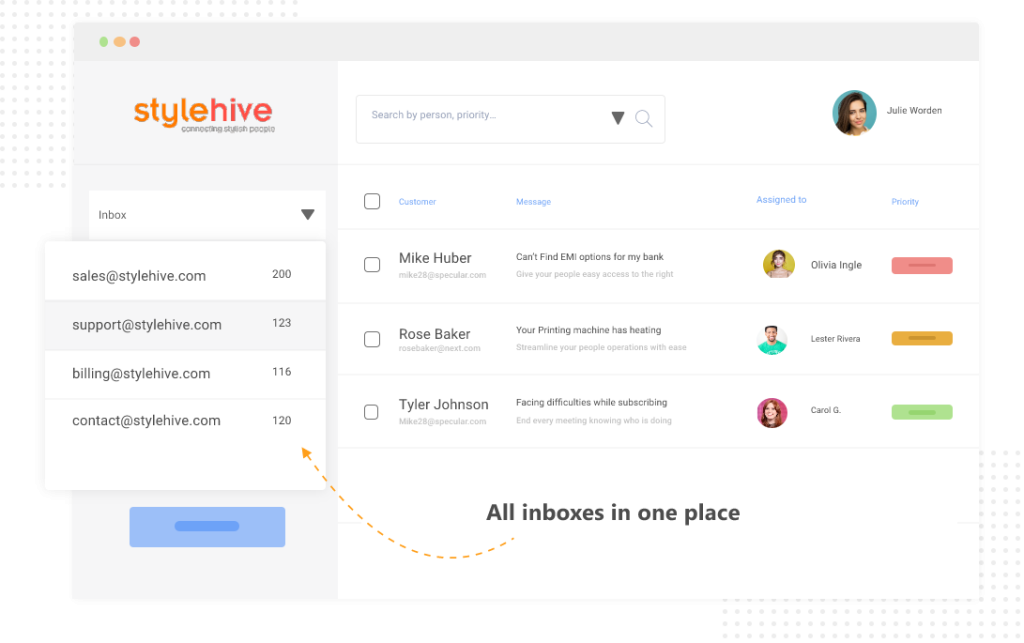
- Multichannel intake: Converts email, live chat, web forms, and social messages into tickets in the same queue.
- Automation rules: Assign tickets, send follow-ups, escalate overdue items, and trigger notifications without manual work.
- Collaboration tools: Private notes, @mentions, collision detection (so two agents don’t answer the same ticket), and parent-child tickets.
- Canned responses and custom fields: Save replies to common questions and capture details like order number or department on every ticket.
- Self-service knowledge base: Lets people find answers before they submit a ticket.
- SLAs and business hours: Set response and resolution targets that only count working time.
- Reports and dashboards: Track response time, resolution time, backlog, agent workload, and satisfaction scores.
- Roles and permissions: Control who can view, edit, assign, or delete tickets.
- AI assistance: Summarizes long threads, suggests replies, detects intent and sentiment, and flags urgent tickets.
- Mobile apps: Let agents respond from a phone when they’re away from a desk.
FREE. All Features. FOREVER!
Try our Forever FREE account with all premium features!
What Are the Real Benefits?
The main benefits of a cloud help desk are less maintenance, one shared view of every request, automatic routing and follow-ups, access from anywhere, and costs that scale with your team. Each one solves a specific day-to-day problem rather than a vague “efficiency” goal.
| Problem you have today | How a cloud help desk addresses it | Practical result |
| Server patches, crashes, and backups eat IT time | Vendor hosts, updates, and backs up the platform | Your team works tickets instead of servers |
| Requests scattered across inboxes, chats, and DMs | Multichannel intake into one queue | Nothing slips between tabs |
| Someone manually sorts and assigns every ticket | Round-robin, skill, or category-based routing | Tickets reach the right person in seconds |
| Customers go quiet and orders stall | Scheduled follow-up rules and reminders | Fewer tickets sit waiting on missing info |
| Managers can’t see response times or backlog | Dashboards and scheduled reports | Data you can bring to a leadership meeting |
| Agents can only work from the office | Browser and mobile access | Remote, hybrid, and multi-site teams work from one queue |
| Tool cost jumps with every new feature or seat | Tiered subscriptions you can scale up or down | Spend tracks team size, not hardware cycles |
Collaboration deserves a special mention. In a shared inbox, agents stop forwarding emails and passing around one login. Internal notes keep context on the ticket, and team collaboration features show who is working on what.
See What One Shared Queue With Automatic Routing Looks Like for Your Team
How Much Does It Cost?
Cloud help desk software is usually priced per agent per month, per ticket or resolution, or as a flat tier. Per-agent pricing is the most predictable for small teams. Per-ticket pricing can look cheap at first but swings with volume. Always compare total cost, not just the sticker price.
| Pricing model | How it works | Good fit | Watch out for |
| Free plan | Limited agents or features, no charge | Solo agents, pilots | Feature caps you’ll outgrow |
| Per agent per month | Fixed fee for each agent seat | Most small and mid-sized teams | Paying for part-time or seasonal seats |
| Per ticket or per resolution | Fee tied to volume or AI-resolved tickets | Very low, steady volume | Bills that spike in busy seasons |
| Tiered bundles | Features unlock by plan level | Teams with clear feature needs | Must-have features locked in top tiers |
Here’s why the model matters. Picture an online retailer whose volume swings between 4,000 and 10,000 tickets a month. On a per-ticket plan, the bill more than doubles in peak months. On a per-agent plan with five agents, the bill stays the same whether volume is high or low.
Total cost of ownership also includes setup time, training, add-ons (extra channels, AI credits, advanced reporting), and the hours you no longer spend maintaining servers. AI is becoming a bigger line item too. A study by Gartner in 2026 found that customer service leaders’ AI spending rose 38% while overall support budgets grew just 2%. Check whether AI features are included in your plan or billed separately.
Is a Cloud Help Desk Secure?
A reputable cloud help desk is often more secure than a self-managed server, because the vendor has dedicated security staff, encryption, and monitored data centers. Security is still shared. The vendor protects the platform; you control who gets access, what permissions they have, and how logins are protected.
The stakes are real. A study by IBM in 2025 put the average cost of a data breach at $4.44 million globally and $10.22 million in the US, with healthcare the most expensive industry for the 15th year running.
Ask every vendor these questions before you sign:
- Certifications: Do you have a current SOC 2 Type II report or ISO 27001 certification? Can we see it?
- Encryption: Is data encrypted in transit and at rest?
- Privacy and compliance: Do you support GDPR and CCPA requests? If we handle US patient data, will you sign a HIPAA business associate agreement?
- Data location: Where is our data stored, and can we choose a region?
- Access controls: Do you offer two-factor authentication, single sign-on, role-based permissions, and audit logs?
- Backups and exit: How often is data backed up, and can we export everything if we leave?
- Uptime: What uptime do you commit to, and where can we check service status?
On your side, turn on two-factor authentication for every agent, give people the narrowest role they need, and remove access the day someone leaves. Those three habits close most of the gaps that cause help desk data leaks.
When Is It Time to Switch?
It’s time to move to a cloud help desk when your current setup costs more effort than it saves. These are the signs I see most often:
- Your current tool is being retired. A sunset notice, even without a date, is the best reason to plan a calm switch instead of a rushed one.
- You maintain a server for one app. If your IT team patches and backs up a machine just to keep ticketing alive, that time can go back to users.
- Your team works from more than one place. Remote staff, multiple sites, or a sister company all need the same queue.
- You’re paying for a CRM to do a help desk’s job. If you use the service module and ignore the rest, a dedicated help desk is usually simpler and cheaper.
- Your bill moves with volume. If seasonal spikes blow up your budget, look at per-agent pricing.
- You track requests in spreadsheets or email lists. Without timestamps and owners, you can’t measure response time or escalate stalled issues.
- Reports take hours to build. Management wants numbers, and your current system can’t produce them without manual exports.
FREE. All Features. FOREVER!
Try our Forever FREE account with all premium features!
How Do You Switch to the Cloud?
To switch to a cloud help desk, audit your current setup, shortlist tools against clear requirements, pilot with real tickets, configure routing and SLAs, migrate the data you need, run both systems in parallel briefly, then train the team and go live. Plan for a few weeks, not a weekend.
- Audit how support works today. List every inbox, channel, ticket category, and report management asks for. Note what breaks most often. This becomes your requirements list.
- Write must-haves and shortlist two or three tools. Separate deal-breakers (email-to-ticket, round-robin assignment, business-hours reporting) from nice-to-haves. Rule out any tool that can’t meet a deal-breaker.
- Pilot with one real inbox. Forward one shared mailbox into a free plan or trial for a week. Real tickets expose gaps that demos hide, like how the tool handles long email threads or attachments.
- Configure inboxes, roles, and routing rules. Create one inbox per team or brand, set agent roles, and build assignment rules. Route by category or department, not by person, so rules survive staff changes. If a sister company shares the tool, give each its own inbox and routing rules.
- Set SLAs, escalations, and follow-ups. Define response and resolution targets in business hours. Add escalation rules for overdue tickets and automatic follow-ups for requests waiting on the customer, such as a reminder every three days for up to a month.
- Migrate what matters and run in parallel. Export open tickets, contacts, and recent history (often the last 12 months) as CSV or through a migration tool. Keep the old system read-only for one or two weeks so nothing is lost. This help desk migration guide covers data mapping in more depth.
- Train the team, go live, and review after 30 days. Run a short walkthrough focused on daily tasks. After a month, check response times, backlog, and satisfaction scores, then adjust rules that aren’t working.
Here’s how steps 4 and 5 look in practice. In ProProfs Help Desk, a two-team setup might use one inbox for customer service with round-robin assignment and a second inbox for a follow-up team with automated reminders. Agents who need to loop in production or billing create a child ticket instead of forwarding the email.
Pilot Your First Inbox This Week and See the Workflow Before You Commit
How Do Different Teams Use It?
Cloud help desks fit any team that receives repeat requests and needs to track them to completion. The setup changes by team: IT cares about categories and asset requests, HR about privacy and escalation, ecommerce about volume spikes, and service providers about juggling several brands.
Internal IT Teams
A five-person IT team at a hospital or clinic network supports hundreds of staff from one email address. Email-to-ticket conversion captures every request, categories sort desktop issues from application requests, and reports show management where time goes.
No server to maintain means the team spends its hours on users. More on this in the guide to an internal ticketing system.
HR and People Operations
HR teams often answer benefits and payroll questions through a distribution list and log them in a spreadsheet. A help desk adds timestamps, owners, and escalation rules for answers that run late. Private notes and roles keep sensitive employee details visible only to the right people. See how an HR ticketing system is typically set up.
Ecommerce and Retail
Online stores see volume jump during launches, sales, and holidays. Per-agent pricing keeps cost flat through those spikes, round-robin routing spreads the load, and real-time chat handles “where’s my order” before it turns into an email chain. Business-hours reporting keeps agent metrics fair when weekend tickets pile up.
Manufacturers and Custom-Order Businesses
Custom products often stall because a customer hasn’t sent measurements, files, or approvals. A first-in, first-out queue keeps older orders moving, and automated follow-up rules nudge customers on a schedule until the ticket has what production needs.
MSPs and Multi-Brand Teams
A managed service provider may support a dozen client domains in one day. Separate inboxes per client, replies sent from each client’s address, and filters by brand keep work organized without separate logins. This MSP ticketing system guide goes deeper.
Help Desk vs. Service Desk
A cloud help desk focuses on resolving issues and questions quickly. A cloud-based service desk is broader: it follows IT service management (ITSM) practices and adds change, problem, and asset management. Small teams usually need a help desk; larger IT departments running formal ITIL processes often need a service desk.
| Factor | Cloud help desk | Cloud service desk |
| Main goal | Resolve requests and issues fast | Manage IT services end to end |
| Typical users | Customer support, IT, HR, operations | Mature IT departments |
| Scope | Tickets, routing, SLAs, self-service, reports | Help desk plus change, problem, asset, and service catalog management |
| Setup effort | Days to weeks | Weeks to months |
| Best for | Teams of 1 to roughly 50 agents | Organizations with formal ITIL processes |
For the full breakdown, read help desk vs. service desk.
What Mistakes Should You Avoid?
Most failed help desk rollouts come from process choices, not the software. These are the mistakes worth planning around:
- Buying a CRM or ITSM suite when you need a help desk. Oversized tools bring more setup, more training, and higher bills. Match the tool to the job you do every day.
- Copying old workflows as they are. If your old process relied on one person sorting the inbox, recreating that in the cloud keeps the bottleneck. Redesign routing around categories first.
- Migrating everything. Ten years of closed tickets slow the import and clutter search. Bring open tickets and recent history; archive the rest.
- Ignoring how pricing scales. Run your busiest month through each vendor’s pricing before you sign.
- Skipping security settings. Shared logins and missing two-factor authentication undo the vendor’s security work. Set roles and 2FA on day one.
- Measuring nothing for the first month. Without a baseline, you can’t prove the switch worked. Track first response time and backlog from week one.
- Leaving no owner after launch. Rules, canned responses, and help articles go stale. Assign one person to review them monthly.
FREE. All Features. FOREVER!
Try our Forever FREE account with all premium features!
What Are the Best Practices?
The best cloud help desk setups start small, automate the repetitive work, and keep self-service content current. These practices address the problems that show up most often after go-live:
- Pilot with one team or inbox. Fix the rough edges with a small group before you roll out to everyone.
- Set SLAs in business hours. Targets that count nights and weekends punish agents for tickets they couldn’t see. Here’s a primer on SLA management.
- Use automation for the predictable, people for the judgment calls. Let rules assign, remind, and escalate. Let agents handle refunds, complaints, and exceptions.
- Build a knowledge base early. Every answered question can become an article that prevents the next ticket. A study by Gartner in 2026 found that 58% of service leaders plan to upskill agents into knowledge management specialists, because AI and self-service both depend on accurate content.
- Review canned responses quarterly. Outdated replies cause more confusion than no reply.
- Share reports on a schedule. Automatic weekly reports keep managers informed without extra work. See what reports and tracking can show.
How Do You Pick the Right Tool?
Pick a cloud help desk by testing it against your own must-haves, with real tickets, during a free plan or trial. Ease of use, automation, pricing model, integrations, and security documentation matter more than the length of the feature list.
| Criterion | What to check | Why it matters |
| Ease of use | Can a non-technical agent work a ticket on day one? | Adoption fails if the tool feels like work |
| Email-to-ticket | Does it handle long threads, CCs, and attachments cleanly? | Email is still the main channel for most teams |
| Automation | Round-robin, escalation, scheduled follow-ups, business hours | Removes manual sorting and chasing |
| Channels | Email, chat, forms, social in one queue | Stops requests from scattering |
| Reporting | Response time, resolution time, CSAT, filters by team | Management needs proof |
| Integrations | Microsoft 365, CRM, ecommerce platform, API access | Keeps context on the ticket |
| Security | 2FA, roles, SSO, audit logs, compliance documents | Protects customer and employee data |
| Pricing | Per-agent vs. per-ticket; what’s in each tier | Predictable budgeting |
| Support | Real humans, onboarding help, help docs | Faster setup with fewer surprises |
If you want a tool built for small and mid-sized teams, ProProfs Help Desk is the easiest AI help desk for shared inboxes, ticket workflow automation, and scaling support teams.
It covers the core checklist above: shared inboxes, round-robin assignment, child tickets, internal notes, SLA tracking, CSAT surveys, and mobile apps. Its AI help desk features summarize long ticket threads and suggest replies agents can adjust before sending.
It also connects with ProProfs Knowledge Base for self-service, and ProProfs Live Chat for real-time conversations. There’s a free plan, so you can pilot one inbox without a contract. If you need full ITSM features like asset and change management, a dedicated service desk will fit better.
Test Your Must-Have List Against Real Tickets Before You Choose
Simplify Support With the Cloud
A cloud help desk takes the server work off your plate and puts every request in one queue your whole team can see. The real gains come from what you build on top: routing by category, SLAs in business hours, follow-ups that run themselves, and reports managers trust.
If you’re ready to move, start with an honest audit of how support runs today, then pilot one inbox with real tickets. Check pricing against your busiest month and get security documents in writing before you commit.
When you want to try that pilot without a contract, ProProfs Help Desk gives you a free plan to set up a shared inbox, automation rules, and reports in the same afternoon.
Frequently Asked Questions
What is the difference between a cloud and an on-premise help desk?
A cloud help desk is hosted and maintained by the vendor and accessed through a browser. An on-premise help desk runs on servers your organization owns, so your team handles installation, updates, security patches, and backups.
How much does cloud-based help desk software cost?
Most tools charge per agent per month, and many offer a free plan for one agent or a small team. Some charge per ticket or per AI resolution instead. Compare total cost using your busiest month, including add-ons like extra channels or AI features.
Is cloud help desk software secure enough for healthcare or finance?
It can be, if the vendor provides the right documentation. Ask for a SOC 2 Type II report or ISO 27001 certification, encryption details, data location, and a signed HIPAA business associate agreement if you handle US patient data. Then enforce 2FA and roles.
Can I migrate tickets from my current help desk or CRM?
Yes. Most tools import tickets and contacts by CSV or a migration service. Bring open tickets and roughly the last year of history, keep the old system read-only for one or two weeks, and archive older records instead of importing them.
What happens to a cloud help desk if the internet goes down?
Agents can't reach the help desk until their connection returns, though the platform itself keeps running and receiving emails. Teams that need extra resilience keep a mobile hotspot handy and use the mobile app as a backup.
Is a cloud help desk the same as a cloud-based service desk?
No. A help desk focuses on resolving requests quickly. A service desk follows ITSM practices and adds change, problem, and asset management. Small and mid-sized teams usually need a help desk; IT departments running formal ITIL processes often need a service desk.
How does a cloud help desk help remote teams collaborate?
Everyone works from one live queue in the browser, so remote and in-office agents see the same tickets. Internal notes, @mentions, and collision detection keep teammates from duplicating work, and mobile apps let agents respond away from a desk.
How long does it take to set up a cloud help desk?
A basic setup with one inbox and assignment rules can take an afternoon. A full rollout with several teams, SLAs, migrated data, and training usually takes two to four weeks. Piloting one inbox first shortens the overall timeline.
FREE. All Features. FOREVER!
Try our Forever FREE account with all premium features!

 We'd love your feedback!
What did you like & how can we make it even better?
 Thanks for your feedback!
 Ask Your Question
Have a question? Get expert help to make your decision easier.